Login into Smart Attendance App
Login using your CNIC and default password: 12345678 (change after login)
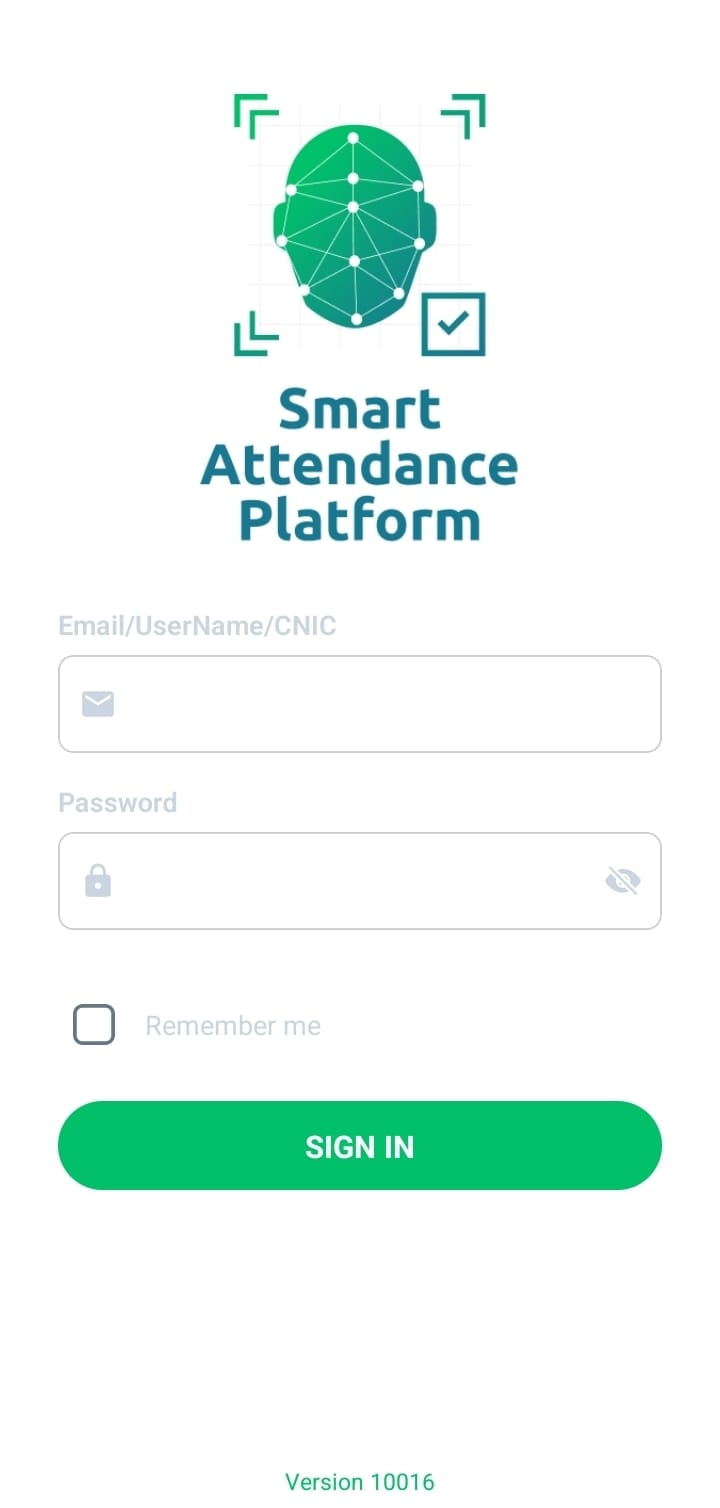
Step-by-step instructions.
Download the Smart Attendance Platform mobile application or follow the user guide below.
Mobile Application Android: Download for Android
Mobile Application iOS: Download for iOS
How to Use (Mobile Application): View Mobile Application User Guide
Follow these instructions to update your profile information in the SAP application. Click an image to open the full-size version in a new tab.
Login using your CNIC and default password: 12345678 (change after login)
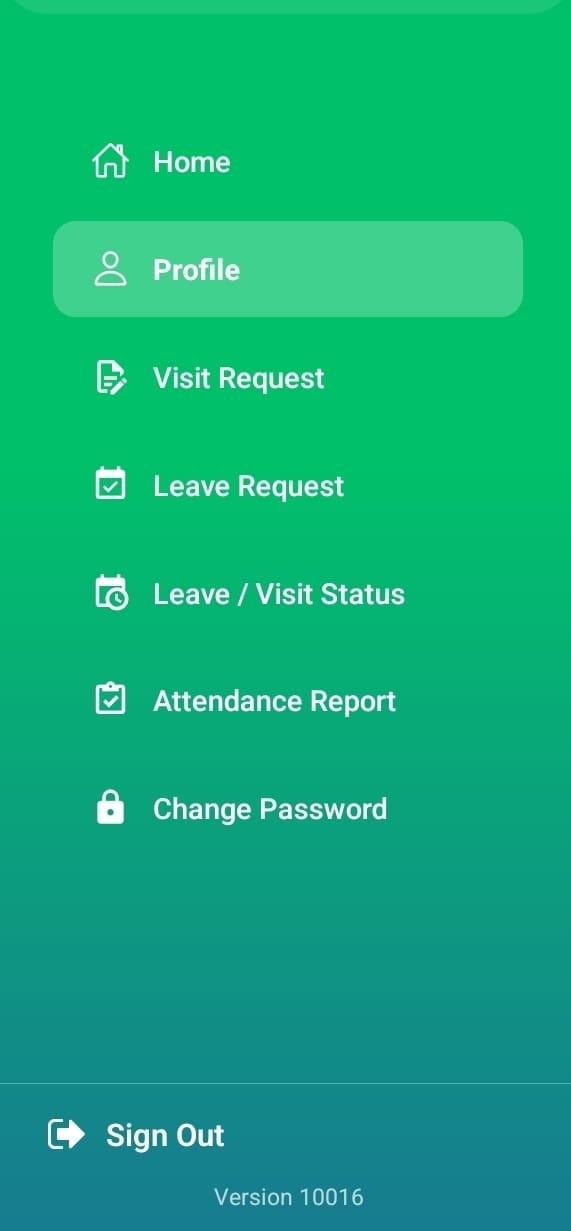
Locate and select the option to edit or update your profile information.
You can review your profile information here.
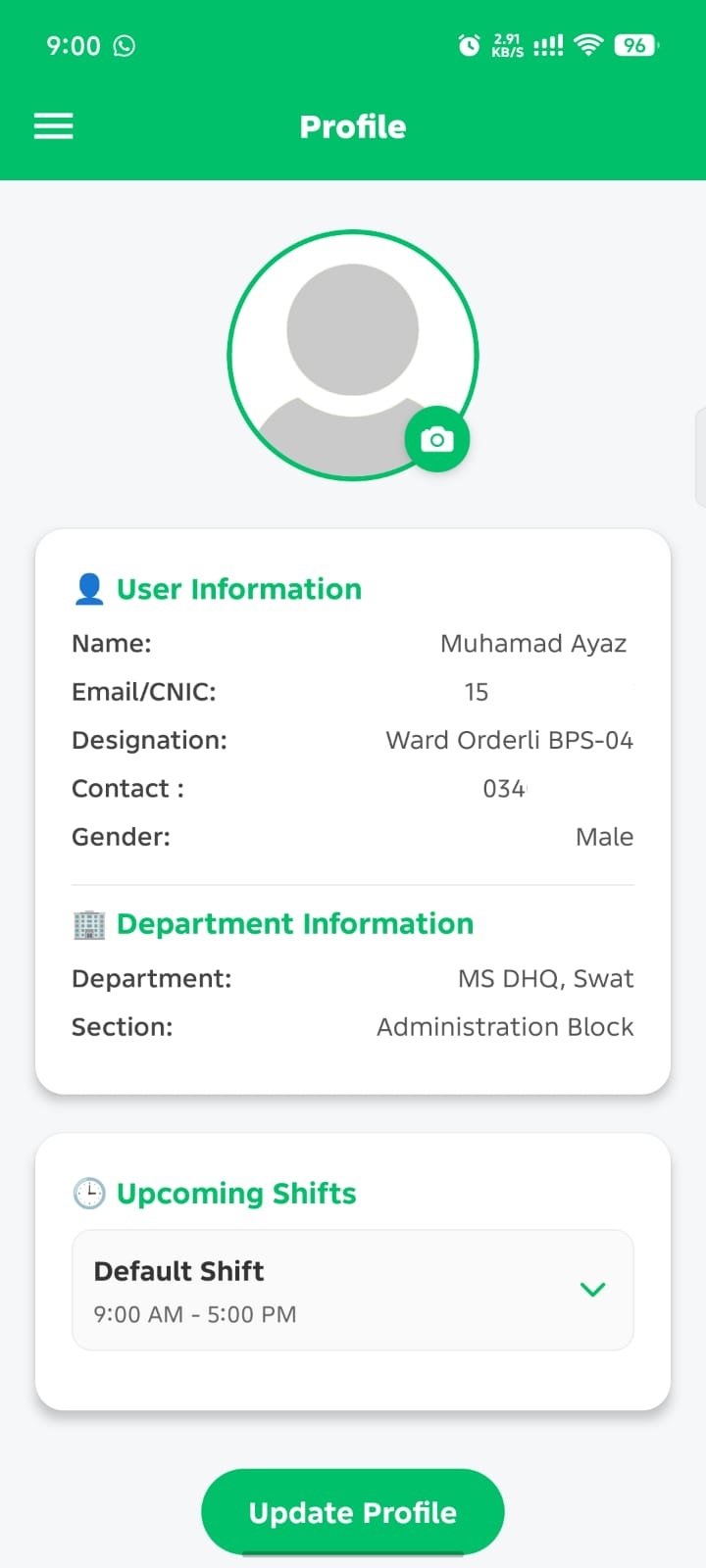
Update your profile information including Mobile Number etc. Carefully review your details before saving the changes.
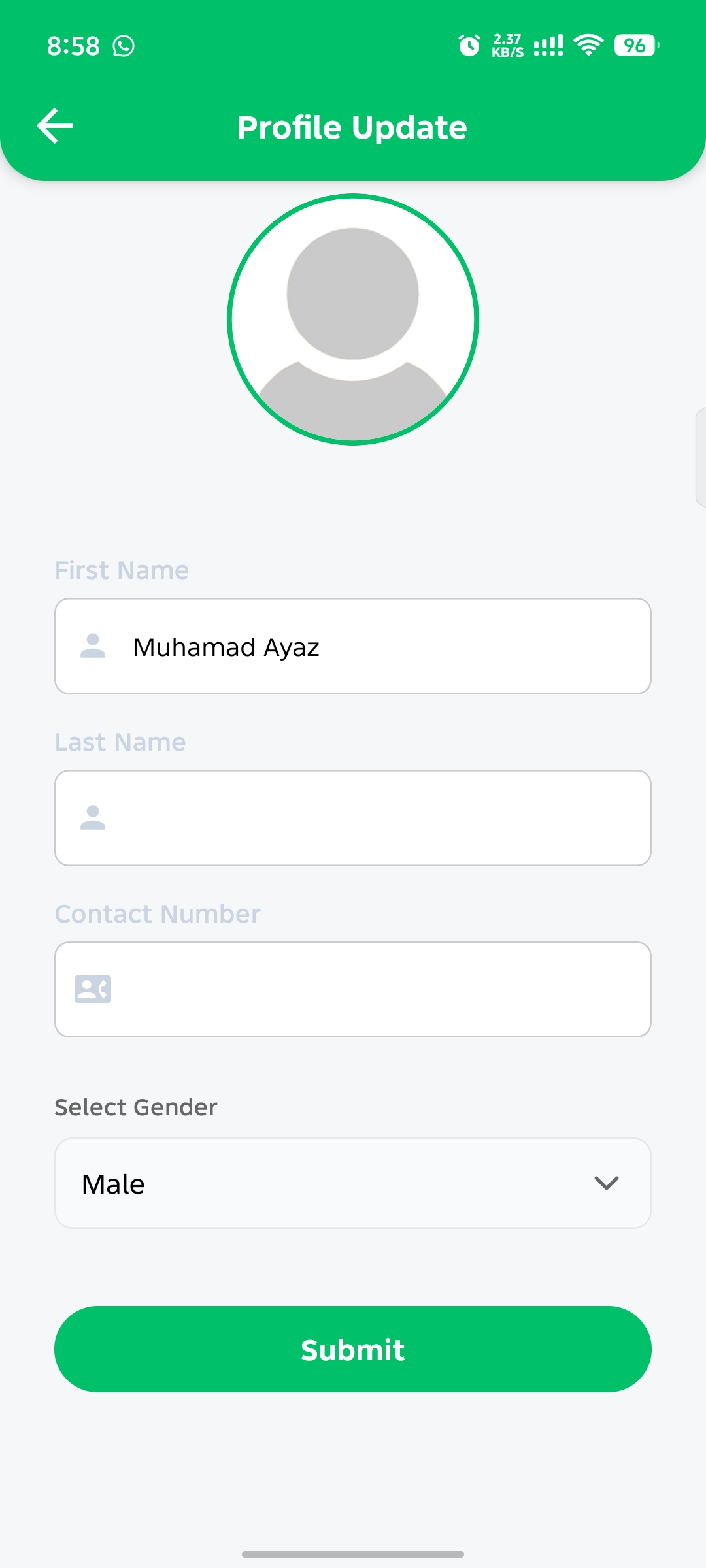
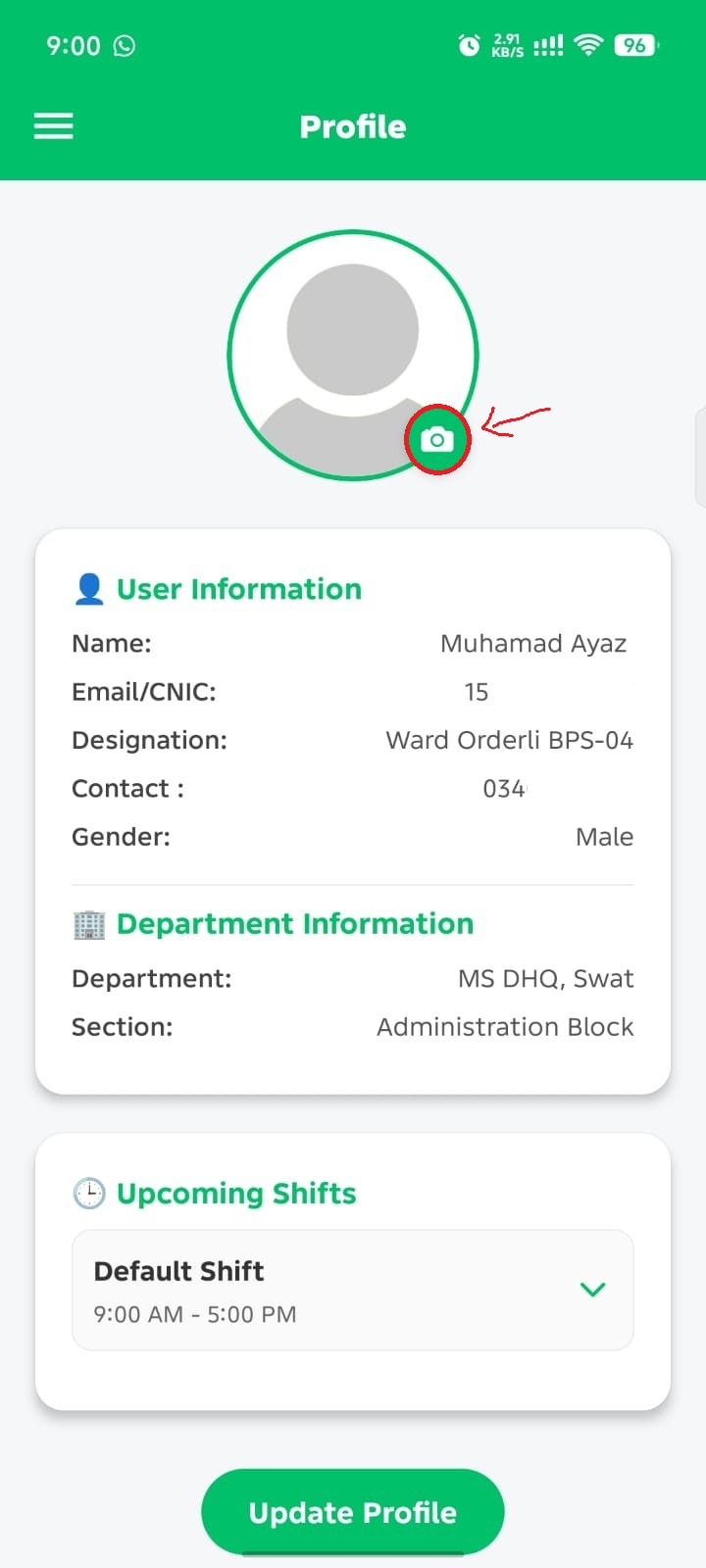
Please take your picture in a well-lit area with a plain, clear background. This picture will be used for marking attendance and cannot be changed once uploaded, so please ensure it is clear and appropriate before submitting.